# Get started with the React library

URL: https://qrdx.dev/docs/getting-started
Source: https://github.com/qrdxinc/qrdx/blob/main/apps/docs/content/docs/getting-started.mdx

Install qrdx, render a styled QR code in a React component and save it as a file, in a few minutes.

By the end of this page you will have a styled QR code rendered by a React component and a button that saves it as an SVG. The library draws the code itself, so you need no account and no API key.

> This page describes qrdx 0.0.62. Run `npm view qrdx version` to see the version npm installs.

## Before you start [#before-you-start]

- A React app on React 16.8 or newer. Next.js, Vite, Remix and the others all work.
- Node.js 18 or newer.

Want to see the options before you write any code? Style a code in the [playground](https://qrdx.dev/playground?open=code&lang=react) and copy it as a React component.

## Build it [#build-it]

### 1. Install qrdx [#1-install-qrdx]

```package-install
qrdx
```

`react` is a peer dependency, so the package uses the version your app already has. Nothing else is installed: PDF export needs the optional `jspdf` package, and only when you use it.

### 2. Render a code [#2-render-a-code]

```tsx title="components/first-qr-code.tsx"
import { QRCode } from "qrdx";

export function FirstQrCode() {
  return <QRCode value="https://example.com" size={256} />;
}
```

Put the component on a page. You see a 256 px code in the library's default look: round modules, gear-shaped corner eyes and black on white. Point a phone camera at the screen and it opens example.com.
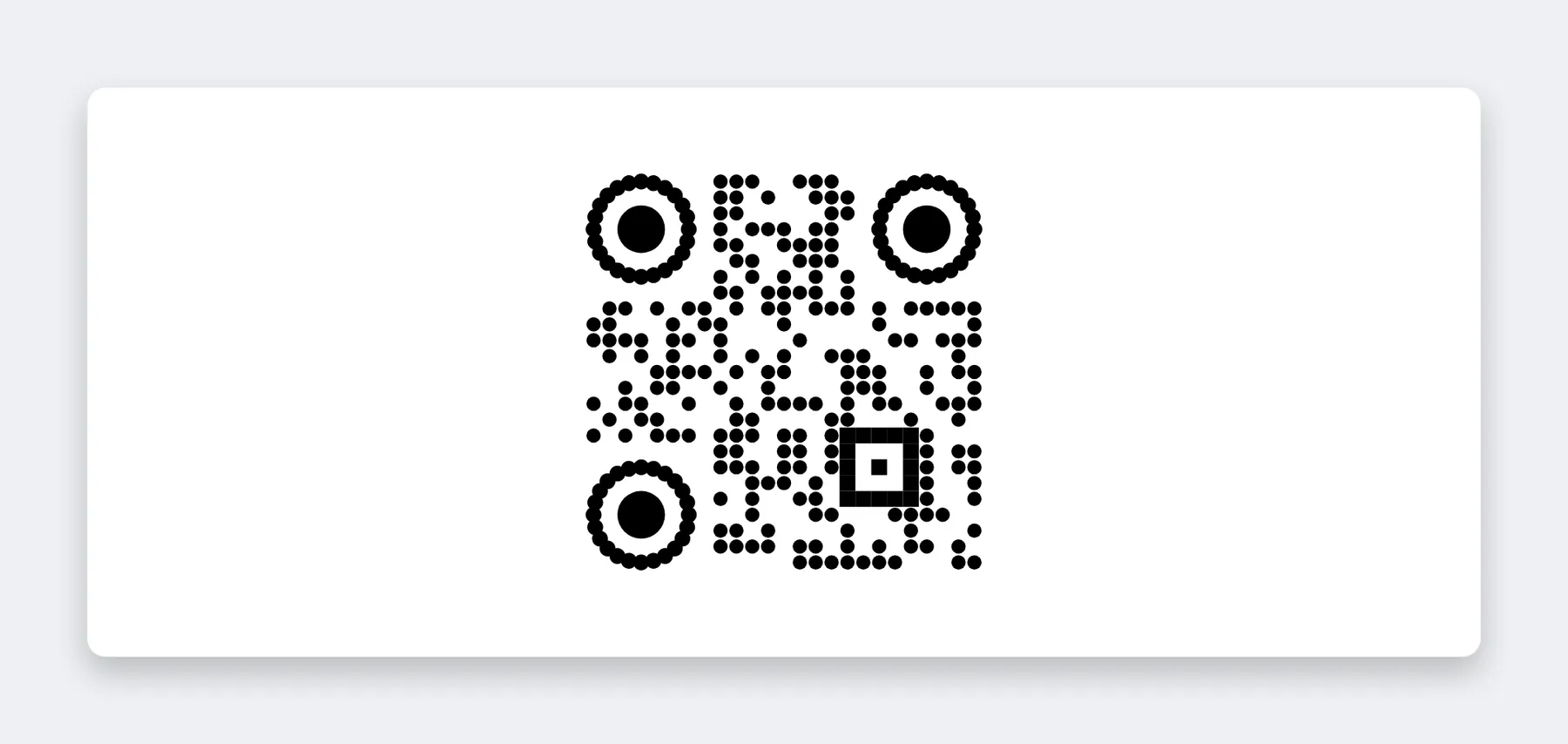
![The code components/first-qr-code.tsx draws: a black QR code on white in the library's default look, with round modules and gear-shaped corner eyes.](https://qrdx.dev/docs-static/shots/lib-first-code.light.webp)

`QRCode` renders an `<svg>` and uses no browser-only hooks, so it works in React Server Components and renders in the page's HTML before any JavaScript runs. Screen readers get nothing from it on its own: step 3 shows how to label it.

### 3. Style it [#3-style-it]

```tsx title="components/styled-qr-code.tsx"
import { QRCode } from "qrdx";

export function StyledQrCode() {
  return (
    <QRCode
      value="https://example.com/menu"
      size={256}
      margin={4}
      fgColor="#1d4ed8"
      bodyPattern="rounded"
      cornerEyePattern="extra-rounded"
      cornerEyeDotPattern="rounded"
      frame={{ style: "banner-bottom", text: "Scan for the menu" }}
    />
  );
}
```

The code is now blue with rounded modules, and a banner under it reads "Scan for the menu". The output is taller than 256 px, because a frame is added around the code rather than drawn over it, so the code still scans.

![The code components/styled-qr-code.tsx draws: blue rounded modules, extra-rounded corner eyes, and a banner under the code that reads Scan for the menu.](https://qrdx.dev/docs-static/shots/lib-styled-code.light.webp)

What each prop does:

- `margin` is the quiet zone around the code, in modules. The default is 0, which suits a code inside a card with its own padding. Use 4 on a busy or dark background.
- `fgColor` takes any CSS color or a gradient. `bgColor`, `eyeColor` and `dotColor` work the same way.
- `bodyPattern`, `cornerEyePattern` and `cornerEyeDotPattern` shape the modules, the corner eyes and the dots inside them. There are 23 body patterns, 22 eye shapes and 22 eye centers, all drawn live in [Shapes, eyes and frames](https://qrdx.dev/docs/styles).
- `frame` adds one of 19 built-in call-to-action frames, or a frame of your own.
- Any other prop goes on the `<svg>`, so `role="img"` with `aria-label="QR code for the menu"` gives the code an accessible name, and `className` gives it a class. This needs qrdx 0.0.56 or later; older versions drop these props, so there you wrap the code in an element that carries them.

### 4. Save it as a file [#4-save-it-as-a-file]

```tsx title="components/download-svg-button.tsx"
"use client";

import { downloadQRCode } from "qrdx";

const menuCode = {
  value: "https://example.com/menu",
  margin: 4,
  fgColor: "#1d4ed8",
  bodyPattern: "rounded",
  frame: { style: "banner-bottom", text: "Scan for the menu" },
} as const;

export function DownloadSvgButton() {
  return (
    <button
      type="button"
      onClick={() =>
        downloadQRCode(menuCode, {
          format: "svg",
          size: { width: 1024, height: 1024 },
          filename: "menu.svg",
        })
      }
    >
      Download SVG
    </button>
  );
}
```

Clicking the button saves `menu.svg`: the same code as on screen, drawn at 1024 px and sharp at any size, which is the file a print shop asks for. Set `format` to `png`, `jpg`, `webp` or `bmp` for an image, `ico` for a favicon, `eps` for a vector file for design tools, or `pdf` (needs the optional `jspdf` package).

`downloadQRCode` uses the browser's DOM, so the button lives in a Client Component. A Server Component can still render it. Keep the code's options in one object, as above, so the file matches the preview.

### 5. Check that it scans [#5-check-that-it-scans]

Scan the code with two or three phones before you print it. For a design with unusual colors or a logo, `getScanScore` runs the same checks in the browser and returns a score, a grade and what to fix:

```tsx title="lib/check-code.ts"
import { getScanScore } from "qrdx";

const { score, grade, checks } = await getScanScore({
  value: "https://example.com/menu",
  fgColor: "#1d4ed8",
  bodyPattern: "rounded",
});
// score: 0 to 100, grade: "great" | "ok" | "risky" | "fails"
// checks: [{ id, passed, message, fix? }]
```

You can also upload a screenshot or a photo of a printed code to the [scan checker](https://qrdx.dev/tools/scan-checker).

## If something goes wrong [#if-something-goes-wrong]

- **`Module not found: Can't resolve 'qrdx'`.** Install the package in the workspace or app that imports it, then restart the dev server.
- **The code renders but phones don't read it.** Add `margin={4}`, keep dark modules on a light background, and render it at least 128 px wide on screen. [A code won't scan](https://qrdx.dev/docs/help/troubleshooting/wont-scan) lists the other causes.
- **`PDF export needs the optional "jspdf" package`.** Run `npm install jspdf` in the same package. SVG, PNG, JPG, WebP, GIF, BMP, ICO and EPS need nothing extra.

## Related [#related]

- [Basic usage](https://qrdx.dev/docs/usage): Which component to use, and every prop that sets a code's look.
- [QR codes in Next.js](https://qrdx.dev/docs/nextjs): Server Components, route params, live input and downloads in the App Router.
- [Choose module and eye shapes](https://qrdx.dev/docs/features/patterns): Every shape, and the pairs to avoid.
- [Library API reference](https://qrdx.dev/docs/api-reference): Every component, function and type the package exports.
