Free Email QR Code Generator
An email QR code opens the scanner's email app with a new message already addressed to you, plus a subject line and body text if you add them. It removes the most error-prone part of getting in touch: typing an email address correctly from print.
Use it on support signs, event badges, feedback cards or product packaging. The reader still has to press send, so nothing is sent without their consent, and the message comes from their own account so you can reply directly.
How to create a Email QR code
- 1Enter the recipient address.
- 2Optionally add a subject and a message, for example 'Feedback: table 12', so incoming emails are easy to sort.
- 3Scan the preview: your mail app should open a draft with the fields filled in.
- 4Download the code as PNG or SVG.
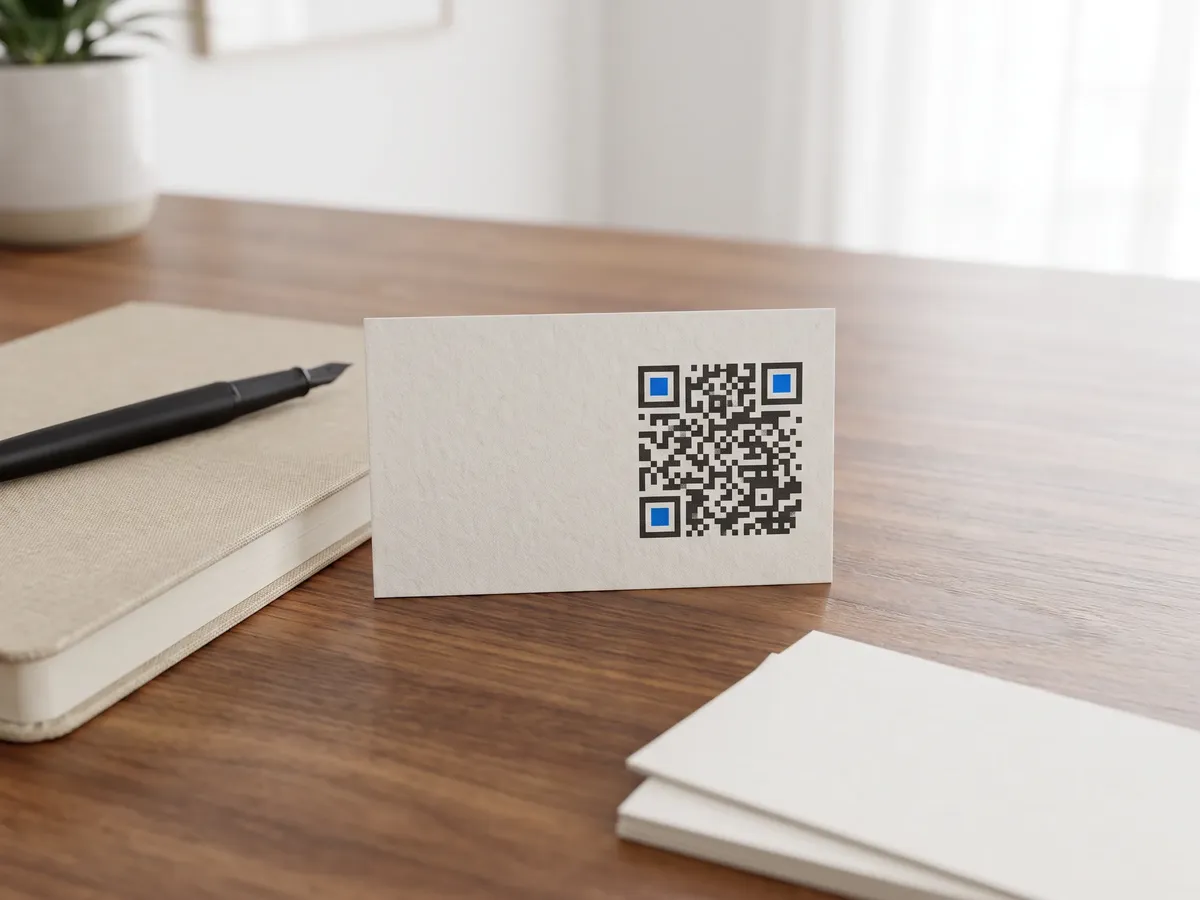
Email QR code format
Format
mailto:<address>?subject=<subject>&body=<message>Example
mailto:support@example.com?subject=Order%20help&body=Order%20number%3A%20- This is a standard mailto: URI (RFC 6068). The subject and body are percent-encoded, so spaces become %20 and line breaks %0A.
- Subject and body are optional. With neither, the code holds only mailto: and the address.
- Prefilled text makes the code denser, so a short subject and a one-line body keep it easy to scan.
- Some older scanners also read the DoCoMo MATMSG: format, but mailto: is the most widely supported.
Email QR code FAQ
Will the email send automatically?
No. Scanning opens a draft in the reader's mail app. They can edit it and must tap send themselves.
Which email app opens?
Whatever the phone uses as its default mail app, such as Apple Mail, Gmail or Outlook.
Can I add CC, BCC or several recipients?
The mailto: standard supports them, but this generator fills in one recipient plus the subject and body.