Free Attendance QR Code Generator
An attendance QR code opens a Google Form where people check in: students in a lecture, staff at a training session, volunteers at an event. Instead of passing a sign-in sheet around, attendees scan the code on the projector or the door and submit their name in seconds.
Google Forms stores each response with a timestamp and can send them to a Google Sheet, so you get an attendance log without retyping anything. Create the form in Google Forms first, then paste its link here.
How to create a Attendance QR code
- 1Create a Google Form with the fields you need, such as name and ID number.
- 2Click Send, choose the link tab and copy the link (shortened forms.gle links work too).
- 3Paste it here and scan the preview to submit a test response.
- 4Download the code and show it on screen or print it at the entrance.
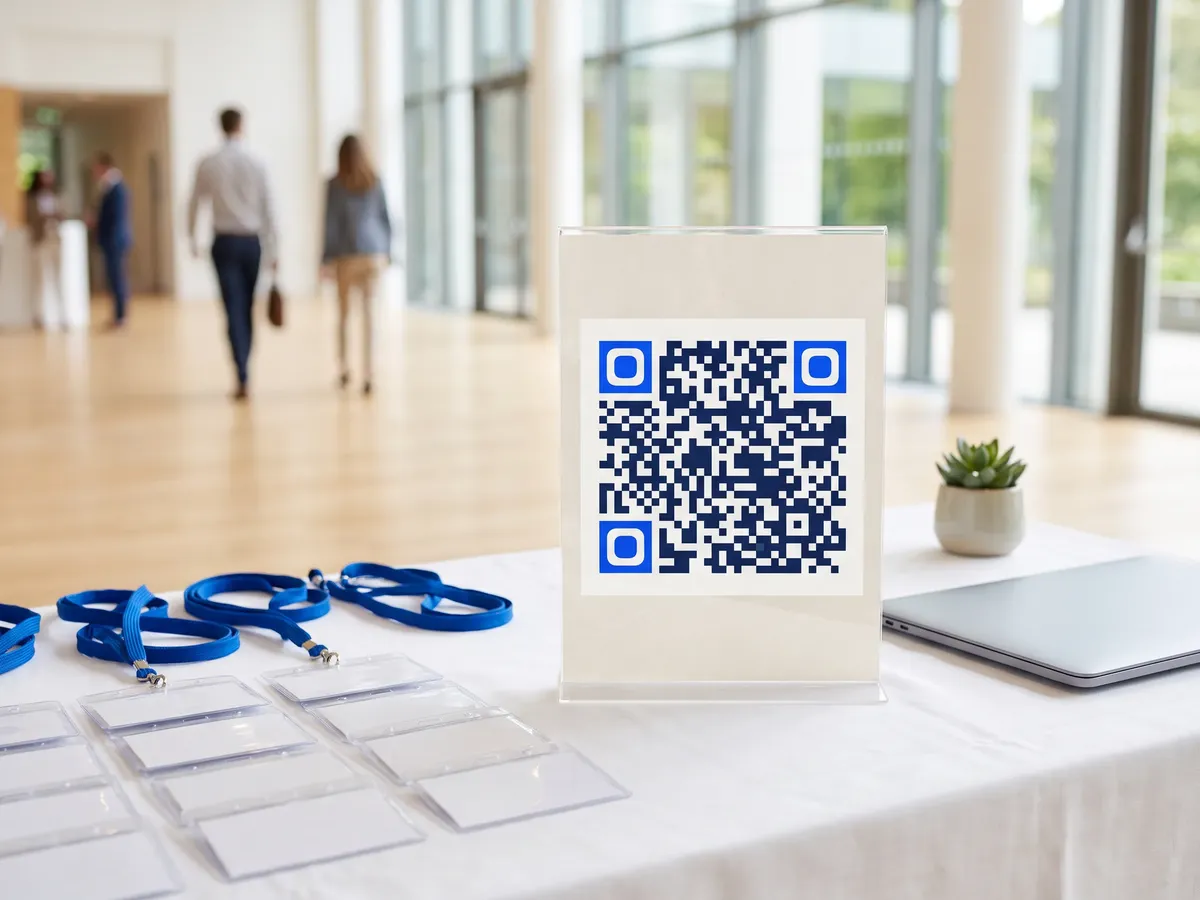
Attendance QR code format
Format
https://docs.google.com/forms/d/e/<form-id>/viewformExample
https://forms.gle/<short-id>- QRdx accepts docs.google.com/forms and forms.gle links.
- Google Forms timestamps every response. In the form settings you can collect email addresses or limit each person to one response, which requires respondents to sign in to Google.
- A static code can be photographed and shared, so people could check in remotely. Close the form after each session if that matters.
Attendance QR code FAQ
How do I stop duplicate check-ins?
Turn on 'Limit to 1 response' in the form's settings. Respondents then need to sign in with a Google account.
Where do I see who attended?
In the form's Responses tab, or in a linked Google Sheet with one row per check-in.
Can I use one code for every session?
Yes, if you keep the same form. Use the timestamps or add a date question, and switch off 'Accepting responses' between sessions.